해당 글에서는 Unity LevelPlay를 활용하여서 앱 내에 광고를 추가하는 방법에 대해 알아봅니다.

1) Unity LevelPlay
💡 Unity LevelPlay
- Unity Technologies(이하 Unity)가 제공하는 모바일 게임 및 앱 내 광고 수익화(모네타이제이션) 및 광고 중개(mediation) 플랫폼입니다.
- 주요 목적은 여러 광고 네트워크(ad networks)를 통합하고, 입찰(bidding) 및 워터폴(waterfall) 방식으로 경쟁을 유도해 광고 단가(eCPM)와 수익을 극대화하는 것입니다.
- 이와 비슷한 주요 플랫폼으로는 Google Admob, AppLovin 등이 있습니다.
유니티 레벨플레이: 광고 미디에이션 플랫폼 | 유니티(Unity)
업계를 선도하는 광고 미디에이션 플랫폼, 유니티 레벨플레이로 앱 수익을 극대화하고 유저 확보를 가속화하세요.
unity.com
1. Unity LevelPlay 기능
| 기능 | 설명 |
| 광고 중개(Mediation) | 여러 광고 네트워크를 하나의 플랫폼에서 관리할 수 있습니다. 사용자는 Unity Ads, AdMob, AppLovin 등 다양한 네트워크를 연결해 수익을 높일 수 있습니다. |
| 실시간 입찰(In-App Bidding) | 광고 인벤토리(노출 기회)를 여러 광고 네트워크가 실시간으로 경쟁(bid)하는 구조로 바꿔, 전통적인 워터폴 방식보다 더 높은 수익을 얻을 수 있게 합니다. |
| 통합 대시보드 및 실시간 리포팅 | 광고 수익, eCPM, 사용자 세그먼트 등 다양한 지표를 실시간으로 확인하고 분석할 수 있는 리포팅 기능을 제공합니다. |
| A/B 테스트 및 세그먼트 제어 | 광고 설정(광고 위치, 포맷, 네트워크 우선순위 등)을 A/B 테스트하여 최적화 가능하며, 사용자 세그먼트별로 광고 경험을 제어할 수 있습니다. |
| Unity Editor 및 생태계 연동 | Unity Editor 내 Package Manager에서 쉽게 통합 가능하며, 개발→빌드→광고 수익화까지 Unity 생태계 안에서 일관된 워크플로우를 제공합니다. |
2. Ironsource
💡 Ironsource
- 이스라엘에서 시작된 모바일 광고 수익화 플랫폼(Ad mediation & monetization platform)입니다.
- 2022년에 Unity Technologies가 IronSource를 인수했습니다. 그 후 Unity는 IronSource의 광고 중개 플랫폼을 통합해서 IronSource LevelPlay → Unity LevelPlay가 되었습니다.
- 즉 IronSource의 Mediation 엔진과 기술력과 Unity의 생태계와 광고 네트워크가 합쳐진 것이 Unity LevelPlay입니다.
- 현재도 Unity 문서와 SDK 내부에서는 “IronSource SDK”라는 이름이 여전히 사용되고 있어요.
유니티, 아이언소스와 합병 계약 체결
유니티는 오늘 아이언소스와 합병 계약 체결을 발표했고, 이에 따라 아이언소스의 툴과 플랫폼, 기술, 인재를 활용하여 크리에이터들의 라이브 게임 및 실시간 인터랙티브 경험 제작과 운영, 관
unity.com
3. Unity LevelPlay의 Mediation은 어떻게 수행이 될까?
💡 Unity LevelPlay의 Mediation은 어떻게 수행이 될까?
- 앱 개발자가 여러 광고의 네트워크를 붙이는 것이 아닌 하나의 중개 플랫폼(LevelPlay)이 대신 네트워크를 연결·조율해 주는 구조입니다.
3.1. Mediation 방식
💡 Mediation 방식
- 직접적으로 개발자는 광고를 붙이는 것이 아니지만, 광고 플랫폼 내에서는 아래와 같은 방식으로 광고가 송출이 됩니다.
| 방식 | 설명 | 용도 |
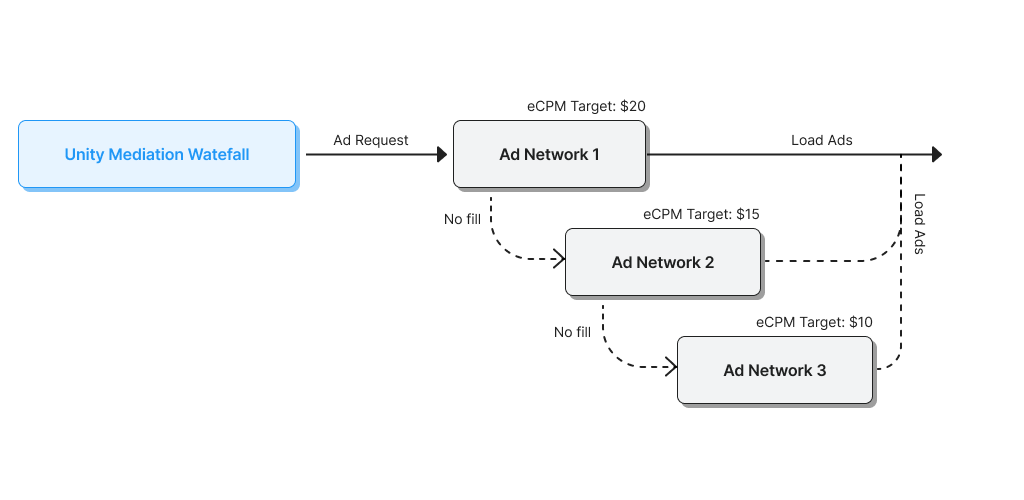
| Waterfall 방식 | '우선순위'를 정해 상단 네트워크부터 순서대로 광고 요청 | 단가가 안정적이지만 비효율적일 수 있음 |
| Bidding 방식 (In-App Bidding) | 여러 네트워크가 실시간 입찰로 경쟁하여 가장 높은 eCPM 광고를 선택 | 최신 트렌드, LevelPlay의 핵심 구조 |
| Hybrid Mediation 방식 | - 입찰 참여 가능한 네트워크는 실시간으로 경쟁하고, 참여 불가능한 네트워크는 예비(Waterfall)로 작동합니다. - 해당 방식이 LevelPlay 방식입니다. |
둘 다 활용해서 최고 수익 + 안정성 + 폭넓은 국가 지원 |
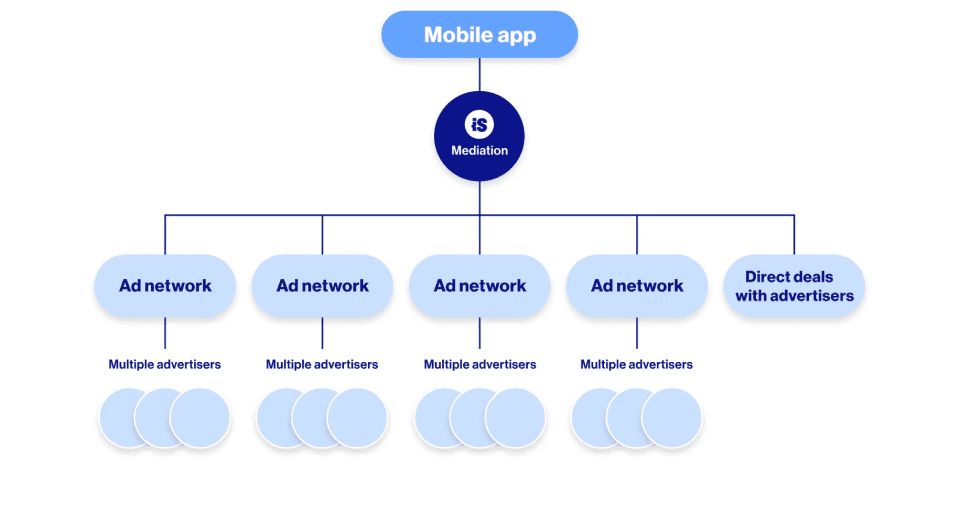
💡 Mediation Waterfall 방식
- '우선순위'를 정해 상단 네트워크부터 순서대로 광고 요청
💡 Mediation Bindding 방식
- 여러 네트워크가 실시간 입찰로 경쟁하여 가장 높은 eCPM 광고를 선택하는 방식

2) 환경 구성하기
💡 환경 구성하기
- 공식사이트의 가이드에 따라서 적용합니다.
- Unity LevelPlay 설정이 완료되었고 권한을 부여받았다는 가정하에 진행을 합니다.
React Native Plugin Integration - IronSource Knowledge Center
React Native Plugin Integration ⚡ Before you start Our React Native plugin is supported from the native SDK versions 7.2.4.1 for Android and 7.2.4 for iOS. The plugin supports both JavaScript and TypeScript. The type declarations are included in the npm
developers.is.com
1. 라이브러리 설치
💡 라이브러리 설치
- 공식 사이트 글을 참고하여서, 가장 최신 버전인 3.2.0 버전을 설치하였습니다.
$ npm install ironsource-mediation@3.2.0

# or

$ yarn add ironsource-mediation@3.2.0
3) 환경 구성하기 : iOS
1. Podfile 설정
💡 Podfile
- IronSourceAdQualitySDK는 Unity LevelPlay에서 광고 품질 측정/분석하는 SDK입니다.
- 앱 안에 송출되는 광고(배너, 전면 광고, 보상형 광고 등)의 품질(클릭, 전환, 수익 기여도 등)을 추적/분석하는 데 사용됩니다.
# 👉 IronSource 추가
pod 'IronSourceAdQualitySDK'
2. plist.info 설정
2.1. 광고 네트워크 고유 식별자 등록
💡 광고 네트워크 고유 식별자 등록
- Apple의 광고 네트워크(예: IronSource, Unity Ads, Google, Facebook 등)에 부여한 고유 식별자로 IronSource의 식별자를 등록합니다.
<key>SKAdNetworkItems</key>
<array>
   <dict>
      <key>SKAdNetworkIdentifier</key>
      <string>su67r6k2v3.skadnetwork</string>
   </dict>
</array>
2.2. Universal SKAN Reporting 등록
💡 Universal SKAN Reporting 등록
- IronSource 같은 mediation 플랫폼도 직접 postback 사본을 수신해서, 전체 네트워크 성과를 더 정확히 집계·최적화할 수 있습니다.
- Universal SKAN postback을 보낼 목적지 URL을 지정하는 키로 IronSource(= Unity LevelPlay)에서 제공하는 전용 엔드포인트로 지정을 합니다.
<key>NSAppTransportSecurity</key>
<dict>
	<key>NSAllowsArbitraryLoads</key>
  	<true/>
</dict>
2.3. App transport security settings 지정
💡 App transport security settings 지정
- iOS 9부터 Apple은 네트워크 보안 강화를 위해 ATS라는 정책을 도입했습니다. 기본적으로 모든 HTTP 요청은 TLS 1.2 이상을 사용하는 HTTPS만 허용됩니다.
- IronSource mediation은 여러 광고 네트워크(구글, Unity, Meta, 작은 DSP 등등)의 광고를 중계합니다. 이때 모든 광고 네트워크가 항상 최신 보안 기준(HTTPS)만 쓰는 건 아니기에 ATS를 그대로 두면 광고 요청이 차단되어서 광고가 나오지 않는 문제가 발생할 수 있습니다.
- Apple은 원칙적으로 광범위한 예외(NSAllowsArbitraryLoads = YES)를 권장하지 않습니다. 보안상 좋은 방법은 개별 도메인 예외(NSExceptionDomains)를 열어주는 방법이지만 도메인이 계속 바뀌기에 관리가 사실상 불가능합니다.
NSAdvertisingAttributionReportEndpoint
<https://postbacks-is.com>
2.4. 종합
<key>SKAdNetworkItems</key>
<array>
   <dict>
      <key>SKAdNetworkIdentifier</key>
      <string>su67r6k2v3.skadnetwork</string>
   </dict>
</array>

<key>NSAppTransportSecurity</key>
<dict>
	<key>NSAllowsArbitraryLoads</key>
  	<true/>
</dict>
<key>NSAdvertisingAttributionReportEndpoint</key>
<string>https://postbacks-is.com</string>
4) 환경 구성하기 : Android
1. app/build.gradle
💡 app/build.gradle
- com.unity3d.ads-mediation:adquality-sdk는 IronSourceAdQualitySDK는 Unity LevelPlay에서 광고 품질 측정/분석하는 SDK입니다.
- play-services-ads-identifier : Android 기기의 광고 식별자(Advertising ID, AAID/GAID)를 가져올 수 있게 해주는 라이브러리.
- play-services-basement : Google Play 서비스 SDK들의 공통 기반(core library) 역할.
- play-services-appset: App Set ID를 제공하는 라이브러리
dependencies {
	implementation 'com.unity3d.ads-mediation:adquality-sdk:9.0.1'
	implementation 'com.google.android.gms:play-services-ads-identifier:18.0.1'
	implementation 'com.google.android.gms:play-services-basement:18.3.0'
	implementation 'com.google.android.gms:play-services-appset:16.0.2'
}
React Native Plugin Integration - IronSource Knowledge Center
React Native Plugin Integration ⚡ Before you start Our React Native plugin is supported from the native SDK versions 7.2.4.1 for Android and 7.2.4 for iOS. The plugin supports both JavaScript and TypeScript. The type declarations are included in the npm
developers.is.com
2. AndroidManifest.xml
💡 AndroidManifest.xml
- 대상 API 레벨을 31(Android 12)로 업데이트하는 앱은 다음과 같이 매니페스트 파일에서 Google Play 서비스 일반 권한을 선언해야 합니다.
<uses-permission android:name="com.google.android.gms.permission.AD_ID"/>
3. proguard-rules.pro
💡 proguard-rules.pro
- ironSource SDK와 함께 ProGuard를 사용하는 경우 다음 코드를 ProGuard 파일(Android Studio: proguard-rules.pro 또는 Eclipse: proguard-project.txt)에 추가해야 합니다.
-keepclassmembers class com.ironsource.sdk.controller.IronSourceWebView$JSInterface {
    public *;
}
-keepclassmembers class * implements android.os.Parcelable {
    public static final android.os.Parcelable$Creator *;
}
-keep public class com.google.android.gms.ads.** {
   public *;
}
-keep class com.ironsource.adapters.** { *;
}
-keep class com.ironsource.unity.androidbridge.** { *;
}
-dontwarn com.ironsource.mediationsdk.**
-dontwarn com.ironsource.adapters.**
-keepattributes JavascriptInterface
-keepclassmembers class * {
    @android.webkit.JavascriptInterface <methods>;
}
💡 [참고] 공식사이트에서 안드로이드 배너 광고만 출력이 안 되는 문제가 있었습니다.
- 해당 문제를 찾던 중, gradle.properties 내에 속성 때문에 실행이 안된다는 것을 발견하였습니다.
- 혹시나 위에 과정이 수행이 되지 않는 경우 아래의 옵션을 수정해 보시면 정상적으로 출력을 됨을 확인하실 수 있습니다.
# 변경 이전
newArchEnabled=true

# 변경 이후
newArchEnabled=false
5) 광고 구성 : 배너 광고, Interstitial 광고
1. 배너 광고
💡 배너 광고
- 배너 광고는 각각 ‘앱의 키’와 ‘배너 UNIT ID’, PLACEMENT 값을 공식사이트에서 확인하여서 입력하여야 합니다.
Banner integration for React Native • Unity Grow • Unity Docs
Implement banner ads in your React Native app using the ironSource SDK, including setup, initialization, and listener configuration.
docs.unity.com
1.1. SDK 로드
💡 SDK 로드
- useEffect를 통해서 해당 화면이 수행될 때 initIronSourceSDK 함수를 호출합니다.
1. APP_KEY 값을 기반으로 initRequest build를 구성합니다
2. initListener : SDK의 리스너를 등록합니다.
- onInitSuccess : SDK 로드를 성공적으로 해올 때, 수행이 되는 함수입니다.
- onInitFailed : SDK 로드를 실패하였을 때, 수행되는 함수입니다.
2. LevelPlay.init(): 최종 앱에 대한 키값과 리스너를 함께 SDK를 초기화하는 init() 함수입니다.
3. 최종 SDK 로드가 완료되면 onInitSuccess 리스너가 수행이 됩니다.
- 해당 시점에 배너를 로드해 옵니다.
const APP_KEY = Platform.select({
    android: '123',
    ios: '123',
    default: '',
});

useEffect(() => {
    initIronSourceSDK();
}, []);

const initIronSourceSDK = async () => {
    if (!APP_KEY) {
        console.error('❌ No APP_KEY found, skipping init');
        return;
    }
    try {
        const initRequest = LevelPlayInitRequest.builder(APP_KEY).build();
        const initListener: LevelPlayInitListener = {
            onInitSuccess: (config: LevelPlayConfiguration) => {
                console.log('✅ IronSource Init Success:', config);
                bannerAdRef.current?.loadAd();
            },
            onInitFailed: (error: LevelPlayInitError) => {
                console.error('❌ IronSource Init Failed:', error);
            },
        };
        // 디버깅용
        // LevelPlay.setAdaptersDebug(true);

        // App mount 안정화 후 실행
        requestAnimationFrame(() => {
            LevelPlay.init(initRequest, initListener)
                .catch((e) => {
                    console.error('🔥 Init Exception:', e);
                });
        });
    } catch (e) {
        console.error('🔥 JS Exception before init:', e);
    }
};
1.2. 배너 광고 로드
💡 배너 광고 로드
- SDK가 성공적으로 수행이 된 이후에 배너 광고가 로드되어야 합니다.
- onInitSuccess → LevelPlayBannerAdView → bannerAdRef.current?.loadAd(); 이와 같은 과정으로 수행이 됩니다.
1. LevelPlayBannerAdView
- adUnitId: 사전에 발급받은 B- ANNER_UNIT_ID 값을 입력합니다.
- adSize: Unity LevelPlay에서 제공하는 주요한 배너 사이즈를 이용합니다.
- placementName: 배너의 어떤 배너인지를 구분하기 위한 배너입니다.
- 예를 들어서, HOME_BANNER → 홈 화면 하단에 표시되는 배너, QUIZ_REWARD → 퀴즈 끝나고 보여주는 리워드 광고가 될 수 있습니다.
- listener: 배너 광고가 출력되고 사전에 정의한 리스너로 결과를 반환받습니다.
2. listener
- 성공적으로 배너가 출력이 되면 onAdLoaded → onAdDisplayed와 같이 수행이 됩니다.
| 콜백 함수 | 호출 시점/의미 | 주로 하는 역할 예시 |
| onAdLoaded(info: LevelPlayAdInfo) | 배너 광고가 성공적으로 로드 완료됐을 때 호출 | UI에 “로드 완료” 로그, 다음 액션 가능 상태 표시 |
| onAdLoadFailed(error: LevelPlayAdError) | 배너 광고 로드가 실패했을 때 호출 | 실패 로그 출력, 일정 시간 후 재시도 (setTimeout 등) |
| onAdDisplayed(info: LevelPlayAdInfo) | 광고가 실제로 화면에 표시되었을 때 호출 | 노출 로그 기록, 분석/통계 전송 |
| onAdDisplayFailed(adInfo, error) | 광고가 로드되었지만 표시 실패했을 때 호출 | 실패 원인 분석, 필요 시 로드 재시도 |
| onAdClicked(info: LevelPlayAdInfo) | 사용자가 배너를 클릭했을 때 호출 | 클릭 이벤트 로깅, 분석/성과 데이터 전송 |
| onAdExpanded(adInfo) | 배너가 확장(Expand) 되었을 때 호출 (예: 리치미디어 광고가 배너 영역을 크게 펼치는 경우) | UI 상태 조정, 배경 일시 정지 등 |
| onAdCollapsed(adInfo) | 확장된 배너가 다시 축소(Collapse) 되었을 때 호출 | UI 원상 복구 |
| onAdLeftApplication(adInfo) | 사용자가 광고를 클릭해서 앱을 떠났을 때 호출 (예: 브라우저 열림) | 앱 상태 관리, 로그 기록, 필요 시 pause 처리 |
/* eslint-disable react-native/no-inline-styles */
import { scaleHeight } from '@/utils';
import {
    LevelPlay,
    LevelPlayAdError,
    LevelPlayAdInfo,
    LevelPlayAdSize,
    LevelPlayBannerAdView,
    LevelPlayBannerAdViewListener,
    LevelPlayBannerAdViewMethods,
    LevelPlayConfiguration,
    LevelPlayInitError,
    LevelPlayInitListener,
    LevelPlayInitRequest,
} from 'ironsource-mediation';
import React, { useCallback, useEffect, useRef, useState } from 'react';
import { Platform, View, StyleSheet } from 'react-native';

interface AdmobBannerAdProps {
    paramMarginTop?: number;
    paramMarginBottom?: number;
    visible?: boolean;
    isLoadSdk?: boolean; // ✅ init 성공 후 true
}

const BANNER_AD_UNIT_ID = Platform.select({
    android: '123',
    ios: '3344',
});

const APP_KEY = Platform.select({
    android: '555',
    ios: '6666',
    default: '',
});

const PLACEMENT_NAME = 'BANNER';

const LevelPlayBannerAd: React.FC<AdmobBannerAdProps> = ({
    paramMarginTop = 6,
    paramMarginBottom = 6,
    visible = true,
    isLoadSdk,
}) => {
    const adSize = LevelPlayAdSize.BANNER
    const bannerAdRef = useRef<LevelPlayBannerAdViewMethods>(null);

    const listener: LevelPlayBannerAdViewListener = {
        onAdLoaded: (info: LevelPlayAdInfo) => {
            console.log('✅ Banner loaded:', info)
        },
        onAdLoadFailed: (error) => {
            console.log('❌ Banner load failed:', error);
            // setTimeout(() => bannerAdRef.current?.loadAd(), 3000); // 3초 후 재시도
        },
        onAdDisplayed: (info: LevelPlayAdInfo) => {
            console.log('📡 Banner displayed:', info)
        },
        onAdDisplayFailed: (adInfo: LevelPlayAdInfo, error: LevelPlayAdError) => {
            // Implement your logic here
        },
        onAdClicked: (info: LevelPlayAdInfo) => {
            console.log('🖱️ Banner clicked:', info)
        },
        onAdExpanded: (adInfo: LevelPlayAdInfo) => {
            // Implement your logic here
        },
        onAdCollapsed: (adInfo: LevelPlayAdInfo) => {
            // Implement your logic here
        },
        onAdLeftApplication: (adInfo: LevelPlayAdInfo) => {
            // Implement your logic here
        },
    };

    // Load ad
    const loadAd = useCallback(() => {
        bannerAdRef.current?.loadAd();
    }, []);

    return (
        <View
            style={[
                styles.container,
                {
                    marginTop: scaleHeight(paramMarginTop),
                    marginBottom: scaleHeight(paramMarginBottom),
                    opacity: visible ? 1 : 0, // 렌더링 유지 + 가시성만 제어
                    height: visible ? undefined : 0,
                },
            ]}>

            <LevelPlayBannerAdView
                ref={bannerAdRef}
                adUnitId={BANNER_AD_UNIT_ID!}
                adSize={adSize}
                placementName={PLACEMENT_NAME}
                listener={listener}
                style={{ width: adSize.width, height: adSize.height, alignSelf: 'center' }}
            />
        </View>
    );
};

export default React.memo(LevelPlayBannerAd);

const styles = StyleSheet.create({
    container: {
        backgroundColor: 'transparent',
    },
    bannerAd: {
        width: 320,
        height: 50,
        alignSelf: 'center',
        position: 'absolute',
        zIndex: 10,
        bottom: 0,
    },
});
1.3. 최종
/* eslint-disable react-native/no-inline-styles */
import { scaleHeight } from '@/utils';
import {
    LevelPlay,
    LevelPlayAdError,
    LevelPlayAdInfo,
    LevelPlayAdSize,
    LevelPlayBannerAdView,
    LevelPlayBannerAdViewListener,
    LevelPlayBannerAdViewMethods,
    LevelPlayConfiguration,
    LevelPlayInitError,
    LevelPlayInitListener,
    LevelPlayInitRequest,
} from 'ironsource-mediation';
import React, { useCallback, useEffect, useRef, useState } from 'react';
import { Platform, View, StyleSheet } from 'react-native';

interface AdmobBannerAdProps {
    paramMarginTop?: number;
    paramMarginBottom?: number;
    visible?: boolean;
    isLoadSdk?: boolean; // ✅ init 성공 후 true
}

const BANNER_AD_UNIT_ID = Platform.select({
    android: '1233',
    ios: '33444',
});

const APP_KEY = Platform.select({
    android: '55566',
    ios: '6667',
    default: '',
});

const PLACEMENT_NAME = 'BANNER';

const LevelPlayBannerAd: React.FC<AdmobBannerAdProps> = ({
    paramMarginTop = 6,
    paramMarginBottom = 6,
    visible = true,
    isLoadSdk,
}) => {

    const adSize = LevelPlayAdSize.BANNER
    const bannerAdRef = useRef<LevelPlayBannerAdViewMethods>(null);

    useEffect(() => {
        initIronSourceSDK();
    }, []);

    const initIronSourceSDK = async () => {
        if (!APP_KEY) {
            console.error('❌ No APP_KEY found, skipping init');
            return;
        }
        try {
            const initRequest = LevelPlayInitRequest.builder(APP_KEY).build();
            const initListener: LevelPlayInitListener = {
                onInitSuccess: (config: LevelPlayConfiguration) => {
                    console.log('✅ IronSource Init Success:', config);
                    bannerAdRef.current?.loadAd();
                },
                onInitFailed: (error: LevelPlayInitError) => {
                    console.error('❌ IronSource Init Failed:', error);
                },
            };
            // 디버깅용
            // LevelPlay.setAdaptersDebug(true);

            // App mount 안정화 후 실행
            requestAnimationFrame(() => {
                LevelPlay.init(initRequest, initListener)
                    .catch((e) => {
                        console.error('🔥 Init Exception:', e);
                    });
            });
        } catch (e) {
            console.error('🔥 JS Exception before init:', e);
        }
    };

    const listener: LevelPlayBannerAdViewListener = {
        onAdLoaded: (info: LevelPlayAdInfo) => {
            console.log('✅ Banner loaded:', info)
        },
        onAdLoadFailed: (error) => {
            console.log('❌ Banner load failed:', error);
            // setTimeout(() => bannerAdRef.current?.loadAd(), 3000); // 3초 후 재시도
        },
        onAdDisplayed: (info: LevelPlayAdInfo) => {
            console.log('📡 Banner displayed:', info)
        },
        onAdDisplayFailed: (adInfo: LevelPlayAdInfo, error: LevelPlayAdError) => {
            // Implement your logic here
        },
        onAdClicked: (info: LevelPlayAdInfo) => {
            console.log('🖱️ Banner clicked:', info)
        },
        onAdExpanded: (adInfo: LevelPlayAdInfo) => {
            // Implement your logic here
        },
        onAdCollapsed: (adInfo: LevelPlayAdInfo) => {
            // Implement your logic here
        },
        onAdLeftApplication: (adInfo: LevelPlayAdInfo) => {
            // Implement your logic here
        },
    };

    // Load ad
    const loadAd = useCallback(() => {
        bannerAdRef.current?.loadAd();
    }, []);

    return (
        <View
            style={[
                styles.container,
                {
                    marginTop: scaleHeight(paramMarginTop),
                    marginBottom: scaleHeight(paramMarginBottom),
                    opacity: visible ? 1 : 0, // 렌더링 유지 + 가시성만 제어
                    height: visible ? undefined : 0,
                },
            ]}>

            <LevelPlayBannerAdView
                ref={bannerAdRef}
                adUnitId={BANNER_AD_UNIT_ID!}
                adSize={adSize}
                placementName={PLACEMENT_NAME}
                listener={listener}
                style={{ width: adSize.width, height: adSize.height, alignSelf: 'center' }}
            />
        </View>
    );
};

export default React.memo(LevelPlayBannerAd);

const styles = StyleSheet.create({
    container: {
        backgroundColor: 'transparent',
    },
    bannerAd: {
        width: 320,
        height: 50,
        alignSelf: 'center',
        position: 'absolute',
        zIndex: 10,
        bottom: 0,
    },
});
1.4. 결과 화면 확인
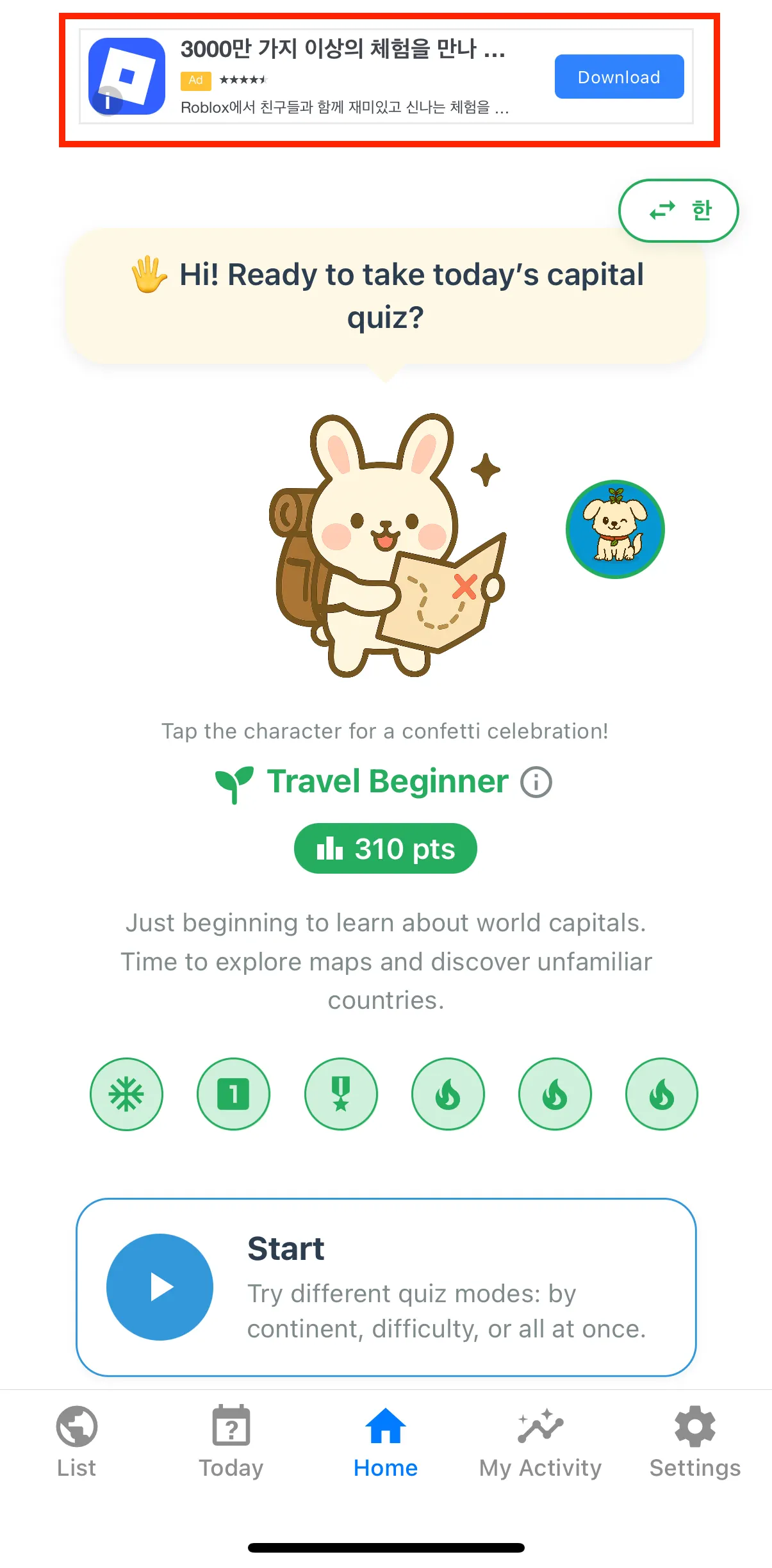
💡 결과 화면 확인
- 아래와 같이 배너화면이 출력이 됨을 확인하였습니다.
2. Interstitial 광고
💡 Interstitial 광고
- Interstitial 광고에서 동일하게 각각 ‘앱의 키’와 ‘배너 UNIT ID’, PLACEMENT 값을 공식사이트에서 확인하여서 입력하여야 합니다.
Interstitial integration for React Native • Unity Grow • Unity Docs
Integrate interstitial ads in your React Native app by initializing the SDK, creating ad units, and setting up event listeners to manage ad loading and display events.
docs.unity.com
2.1. SDK 로드
💡 SDK 로드
- useEffect를 통해서 해당 화면이 수행될 때 initIronSourceSDK 함수를 호출합니다.
1. APP_KEY 값을 기반으로 initRequest build를 구성합니다.
2. initListener: SDK의 리스너를 등록합니다.
- onInitSuccess : SDK 로드를 성공적으로 해올 때, 수행이 되는 함수입니다.
- onInitFailed : SDK 로드를 실패하였을 때, 수행되는 함수입니다.
LevelPlay.init() : 최종 앱에 대한 키값과 리스너를 함께 SDK를 초기화하는 init() 함수입니다.
- 최종 SDK 로드가 완료되면 onInitSuccess 리스너가 수행이 됩니다.
- 해당 시점에 배너를 로드해 옵니다.
import { scaledSize, scaleHeight, scaleWidth } from '@/utils';
import {
	LevelPlay,
	LevelPlayAdError,
	LevelPlayAdInfo,
	LevelPlayConfiguration,
	LevelPlayInitError,
	LevelPlayInitListener,
	LevelPlayInitRequest,
	LevelPlayInterstitialAd,
	LevelPlayInterstitialAdListener,
} from 'ironsource-mediation';
import { useEffect, useState } from 'react';
import { ActivityIndicator, Platform, StyleSheet, Text, View } from 'react-native';

type Props = {
	onAdClosed?: () => void;
};

const APP_KEY = Platform.select({
	android: '234234',
	ios: '2342345',
	default: '',
});

const PLACEMENT_NAME = 'FRONT';

const LevelPlayFrontAd = ({ onAdClosed }: Props) => {
	const [interstitialAd, setInterstitialAd] = useState<LevelPlayInterstitialAd>(
		new LevelPlayInterstitialAd(BANNER_FRONT_UNIT_ID!),
	);
	const [isVisible, setIsVisible] = useState(true); // 처음에는 보이도록

	useEffect(() => {
		initIronSourceSDK();
	}, []);

	const initIronSourceSDK = async () => {
		try {
			const initRequest = LevelPlayInitRequest.builder(APP_KEY!).build();

			const initListener: LevelPlayInitListener = {
				onInitSuccess: (config: LevelPlayConfiguration) => {
					console.log('✅ IronSource Init Success:', config);
					interstitialAd.setListener(listener);
					interstitialAd.loadAd();
				},
				onInitFailed: (error: LevelPlayInitError) => {
					console.error('❌ IronSource Init Failed:', error);
				},
			};

			// 🔹 테스트 광고 활성화
			// LevelPlay.setMetaData('is_test_suite', ['enable']);
			// LevelPlay.setAdaptersDebug(true);

			// 2. LevelPlay.init 요청을 생성합니다
			await LevelPlay.init(initRequest, initListener);

			// 🔹 필요하다면 Test Suite 실행 (네트워크 설정 확인용)
			// await LevelPlay.launchTestSuite();
		} catch (e) {
			console.error('🔥 Init Exception:', e);
		}
	}

	return isVisible ? (
		<View style={styles.adOverlay}>
			<View style={styles.container}>
				<ActivityIndicator size="large" color="#3498db" />
				<Text style={styles.loadingTxt}>광고를 준비 중이에요…</Text>
			</View>
		</View>
	) : null;
};
export default LevelPlayFrontAd;

const styles = StyleSheet.create({
	container: {
		padding: scaleHeight(24),
		backgroundColor: '#fff',
		borderRadius: scaleWidth(20),
		alignItems: 'center',
		justifyContent: 'center',
		shadowColor: '#000',
		shadowOpacity: 0.1,
		shadowOffset: { width: 0, height: 2 },
		shadowRadius: 6,
	},

	adOverlay: {
		position: 'absolute',
		top: 0,
		left: 0,
		right: 0,
		bottom: 0,
		backgroundColor: 'rgba(0,0,0,0.4)', // 더 어둡게
		justifyContent: 'center',
		alignItems: 'center',
		zIndex: 999,
	},

	loadingTxt: {
		marginTop: scaleHeight(12),
		fontSize: scaledSize(16),
		color: '#2c3e50',
		fontWeight: '600',
	},

	subTxt: {
		marginTop: scaleHeight(4),
		fontSize: scaledSize(13),
		color: '#7f8c8d',
	},

	mascotImage: {
		width: scaleWidth(80),
		height: scaleWidth(80),
		marginBottom: scaleHeight(16),
		opacity: 0.9,
	},
});
1.2. Interstitial 광고 로드
💡 Interstitial 광고 로드
- SDK가 성공적으로 수행이 된 이후에 Interstitial 광고가 로드되어야 합니다.
- onInitSuccess → interstitialAd.setListener() → interstitialAd.loadAd() → interstitialAd.showAd(PLACEMENT_NAME); 이와 같은 과정으로 수행이 됩니다.
1. interstitialAd.setListener
- interstitial 광고의 리스너를 등록합니다. onAdLoaded() → onAdDisplayed() 함수 순으로 수행이 됩니다.
2. interstitialAd.loadAd()
- interstitial 광고를 로드해 옵니다. 광고가 로드되면 리스너가 수행이 되며, 결과 값을 반환해 줍니다.
3. onAdLoaded()
- 리스너의 광고가 로드가 되면, 이때 interstitialAd.showAd(PLACEMENT_NAME) 함수를 호출하여 광고를 송출합니다.
import { scaledSize, scaleHeight, scaleWidth } from '@/utils';
import {
	LevelPlay,
	LevelPlayAdError,
	LevelPlayAdInfo,
	LevelPlayConfiguration,
	LevelPlayInitError,
	LevelPlayInitListener,
	LevelPlayInitRequest,
	LevelPlayInterstitialAd,
	LevelPlayInterstitialAdListener,
} from 'ironsource-mediation';
import { useEffect, useState } from 'react';
import { ActivityIndicator, Platform, StyleSheet, Text, View } from 'react-native';

type Props = {
	onAdClosed?: () => void;
};

const BANNER_FRONT_UNIT_ID = Platform.select({
	android: 'uzlf2e92cvhgm8x4',
	ios: 'n2q9mb4q8zri270x',
});

const APP_KEY = Platform.select({
	android: '23a5ec315',
	ios: '23a5fa935',
	default: '',
});

const PLACEMENT_NAME = 'FRONT';

const LevelPlayFrontAd = ({ onAdClosed }: Props) => {
	const [interstitialAd, setInterstitialAd] = useState<LevelPlayInterstitialAd>(
		new LevelPlayInterstitialAd(BANNER_FRONT_UNIT_ID!),
	);
	const [isVisible, setIsVisible] = useState(true); // 처음에는 보이도록

	useEffect(() => {
		initIronSourceSDK();
	}, []);

	const initIronSourceSDK = async () => {
		try {
			const initRequest = LevelPlayInitRequest.builder(APP_KEY!).build();

			const initListener: LevelPlayInitListener = {
				onInitSuccess: (config: LevelPlayConfiguration) => {
					console.log('✅ IronSource Init Success:', config);
					interstitialAd.setListener(listener);
					interstitialAd.loadAd();
				},
				onInitFailed: (error: LevelPlayInitError) => {
					console.error('❌ IronSource Init Failed:', error);
				},
			};

			// 🔹 테스트 광고 활성화
			// LevelPlay.setMetaData('is_test_suite', ['enable']);
			// LevelPlay.setAdaptersDebug(true);

			// 2. LevelPlay.init 요청을 생성합니다
			await LevelPlay.init(initRequest, initListener);

			// 🔹 필요하다면 Test Suite 실행 (네트워크 설정 확인용)
			// await LevelPlay.launchTestSuite();
		} catch (e) {
			console.error('🔥 Init Exception:', e);
		}
	};

	const listener: LevelPlayInterstitialAdListener = {
		onAdLoaded: (adInfo: LevelPlayAdInfo) => {
			console.log('✅ Interstitial Loaded:', adInfo);
			interstitialAd.showAd(PLACEMENT_NAME);
		},
		onAdLoadFailed: (error: LevelPlayAdError) => {
			console.log('❌ Interstitial Load Fail:', error);
			setIsVisible(false); // 광고 실패 → 오버레이 닫기
			onAdClosed?.(); // 외부 콜백 호출
		},
		onAdDisplayed: (adInfo: LevelPlayAdInfo) => {
			console.log('✅ Interstitial Displayed:', adInfo);
		},
		onAdDisplayFailed: (error: LevelPlayAdError, adInfo: LevelPlayAdInfo) => {
			console.log('❌ Interstitial Display Fail:', error);
			setIsVisible(false); // 표시 실패 → 오버레이 닫기
			onAdClosed?.();
		},
		onAdClosed: (adInfo: LevelPlayAdInfo) => {
			console.log('👋 Interstitial Closed:', adInfo);
			setIsVisible(false);
			onAdClosed?.();
		},
	};

	return isVisible ? (
		<View style={styles.adOverlay}>
			<View style={styles.container}>
				<ActivityIndicator size="large" color="#3498db" />
				<Text style={styles.loadingTxt}>광고를 준비 중이에요…</Text>
			</View>
		</View>
	) : null;
};
export default LevelPlayFrontAd;

const styles = StyleSheet.create({
	container: {
		padding: scaleHeight(24),
		backgroundColor: '#fff',
		borderRadius: scaleWidth(20),
		alignItems: 'center',
		justifyContent: 'center',
		shadowColor: '#000',
		shadowOpacity: 0.1,
		shadowOffset: { width: 0, height: 2 },
		shadowRadius: 6,
	},

	adOverlay: {
		position: 'absolute',
		top: 0,
		left: 0,
		right: 0,
		bottom: 0,
		backgroundColor: 'rgba(0,0,0,0.4)', // 더 어둡게
		justifyContent: 'center',
		alignItems: 'center',
		zIndex: 999,
	},

	loadingTxt: {
		marginTop: scaleHeight(12),
		fontSize: scaledSize(16),
		color: '#2c3e50',
		fontWeight: '600',
	},

	subTxt: {
		marginTop: scaleHeight(4),
		fontSize: scaledSize(13),
		color: '#7f8c8d',
	},

	mascotImage: {
		width: scaleWidth(80),
		height: scaleWidth(80),
		marginBottom: scaleHeight(16),
		opacity: 0.9,
	},
});
2.3. 결과 화면
💡 결과 화면
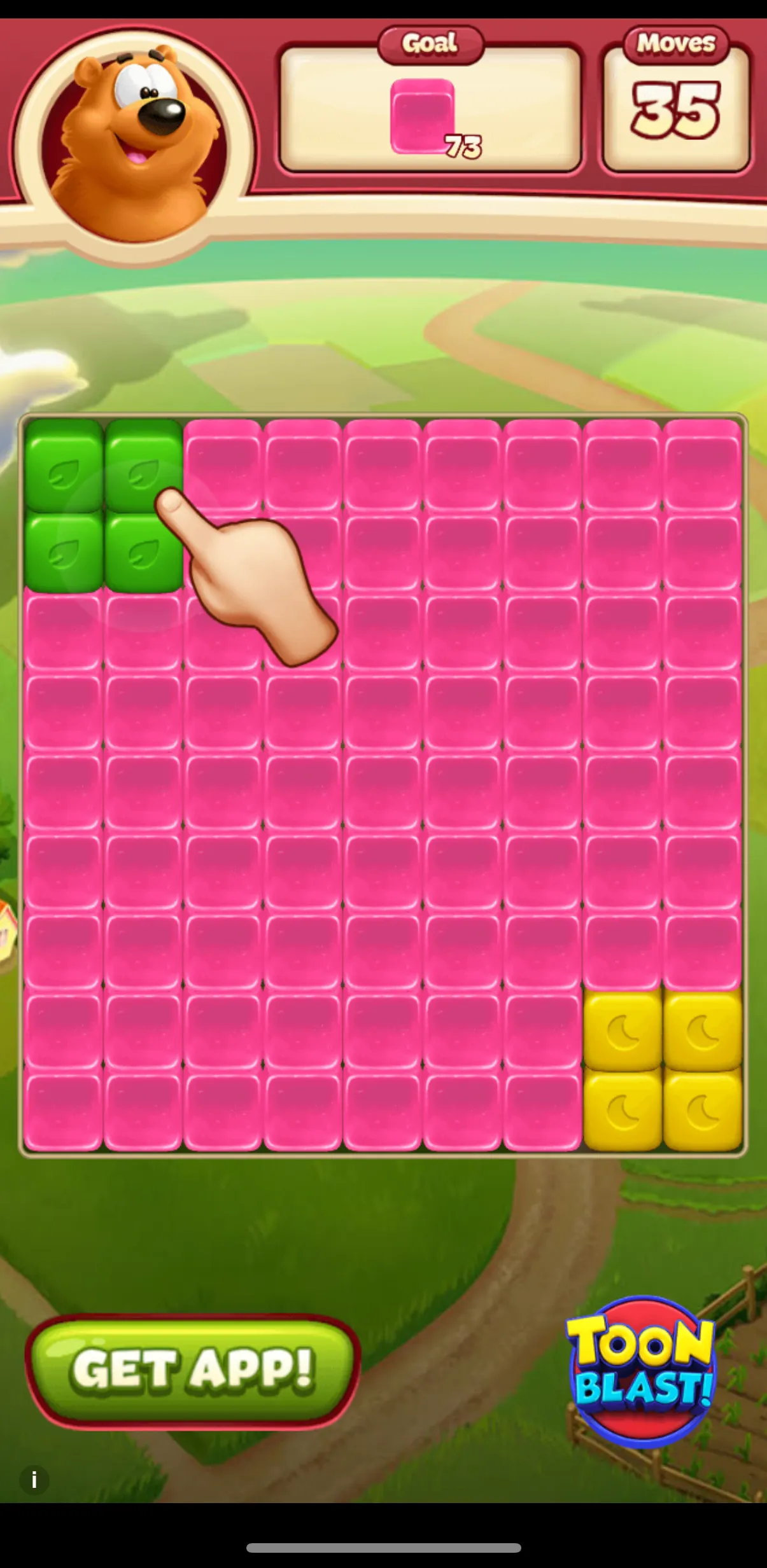
- 아래와 같이 전면 광고가 출력이 됨을 확인하였습니다.
오늘도 감사합니다. 😀