
해당 글에서는 React Native 환경에서 react-native-bootsplash 라이브러리를 이용하여 스플래시 화면을 만드는 방법에 대해서 알아봅니다.

1) react-native-bootsplash
💡 react-native-bootsplash
- React Native 앱 실행 시 나타나는 스플래시 스크린(Splash Screen)을 쉽게 구현하기 위한 라이브러리입니다.
- Mathieu Acthernoene(Zoontek)이 만든 라이브러리로, 현재 RN 생태계에서 가장 널리 쓰이는 스플래시 솔루션입니다.
https://www.npmjs.com/package/react-native-bootsplash
사픽: 사자성어 퀴즈 - Google Play 앱
사자성어를 카드로 배우고, 퀴즈와 오답 복습으로 완벽히 암기하는 학습 앱
play.google.com
사픽: 사자성어 퀴즈 앱 - App Store
App Store에서 EcodeLab의 사픽: 사자성어 퀴즈 앱을 다운로드하십시오. 스크린샷, 평가 및 리뷰, 사용자 팁 및 사픽: 사자성어 퀴즈 앱과 비슷한 다른 앱을 볼 수 있습니다.
apps.apple.com
2) 초기 환경 적용 방법
1. 라이브러리 설치
# npm
$ npm i react-native-bootsplash

# yarn
$ yarn add react-native-bootsplash
https://www.npmjs.com/package/react-native-bootsplash
2. [Android] MainActivity.kt
💡 [Android] MainActivity.kt
- JS 번들이 로드되기 전에 잠깐 흰 화면이 뜨는데, RNBootSplash.init()이 그 시점에 스플래시 화면을 즉시 표시해 줌.
import android.os.Bundle
import com.zoontek.rnbootsplash.RNBootSplash // ← 추가

class MainActivity : ReactActivity() {
    override fun onCreate(savedInstanceState: Bundle?) {
        RNBootSplash.init(this, R.style.BootTheme) // ← 추가
        super.onCreate(savedInstanceState)
    }
}
3. [Android] styles.xml
💡 [Android] styles.xml
- 스플래시의 디자인을 적용합니다. 배경색, 로고, 끝나면 어떤 테마로 돌아갈지에 대해 정의
<style name="BootTheme" parent="Theme.BootSplash">
    <item name="bootSplashBackground">@color/bootsplash_background</item>
    <item name="bootSplashLogo">@drawable/bootsplash_logo</item>
    <item name="postBootSplashTheme">@style/AppTheme</item>
</style>
4. [Android] Color.xml
💡 [Android] Color.xml
- 스플래시 백그라운 색을 정의합니다
<resources>
    <color name="bootsplash_background">#ff8c42</color>
</resources>
5. [iOS] AppDelegate.swift
💡 [iOS] AppDelegate.swift
- iOS 플랫폼에서 React Native 루트 뷰가 만들어지는 시점에 BootSplash.storyboard를 불러와서 스플래시 표시가 됩니다.
- JS 로드 완료 후 JS 쪽에서 RNBootSplash.hide() 호출하면 사라짐
import Firebase
import RNBootSplash // ← 추가
import React
import ReactAppDependencyProvider
import React_RCTAppDelegate
import UIKit

@main
class AppDelegate: RCTAppDelegate {
  override func application(
    _ application: UIApplication,
    didFinishLaunchingWithOptions launchOptions: [UIApplication.LaunchOptionsKey: Any]? = nil
  ) -> Bool {
    self.moduleName = "EmotionalEmoticon"
    self.dependencyProvider = RCTAppDependencyProvider()
    self.initialProps = [:]

    FirebaseApp.configure()
    return super.application(application, didFinishLaunchingWithOptions: launchOptions)
  }

  // ✅ 해당 부분 추가
  override func customize(_ rootView: RCTRootView!) {
    super.customize(rootView)
    RNBootSplash.initWithStoryboard("BootSplash", rootView: rootView)
  }

  override func sourceURL(for bridge: RCTBridge) -> URL? {
    self.bundleURL()
  }

  override func bundleURL() -> URL? {
    #if DEBUG
      RCTBundleURLProvider.sharedSettings().jsBundleURL(forBundleRoot: "index")
    #else
      Bundle.main.url(forResource: "main", withExtension: "jsbundle")
    #endif
  }

  override func application(
    _ application: UIApplication, supportedInterfaceOrientationsFor window: UIWindow?
  ) -> UIInterfaceOrientationMask {
    return .portrait
  }
}
6. AppLayout.tsx
💡 AppLayout.tsx
- Navigation이 준비되는 시점에 스플래시를 fade 효과로 숨기는 과정입니다.
import BootSplash from 'react-native-bootsplash'; // 추가

return (
		<NavigationContainer
			ref={navigationRef}
			onReady={() => {
				setCurrentRoute(navigationRef.current?.getCurrentRoute()?.name || '');
				BootSplash.hide({ fade: true }); // 추가
			}}
			onStateChange={() => {
				const routeName = navigationRef.current?.getCurrentRoute()?.name;
				if (routeName) {
					setCurrentRoute(routeName);
				}
			}}>
			<SafeAreaView style={[styles.safeArea, { backgroundColor }]} edges={shouldShowAd ? ['top'] : []}>
				<View style={styles.container}>
					<View style={[styles.adWrapperAbsolute, !shouldShowAd && { height: 0, opacity: 0 }]}>
						<AdmobBannerAd visible={shouldShowAd} paramMarginTop={0} paramMarginBottom={0} />
					</View>
					{shouldShowAd && <View style={{ paddingTop: getAdPaddingTop() }} />}
					<View style={[styles.navigatorWrapper, { paddingTop: getNavigatorPaddingTop(shouldShowAd), backgroundColor }]}>
						<StackNavigator />
					</View>
				</View>
			</SafeAreaView>
		</NavigationContainer>
	);
3) 스플래시 이미지 생성 과정-1: Node Server
💡 스플래시 이미지 생성 과정-1: Node Server
- Node Server를 두고 스플래시 로고 이미지를 정확하게 추출해 내기 위해서 Node Server에서 조합하여 react-native-bootsplash에서 요구하는 이미지를 추출해 내는 과정입니다.
- 해당 과정에서는 메인 아이콘을 기반으로 스플래시 이미지를 간단하게 만듭니다.
1. 메인 아이콘을 아래에서 bg를 제거합니다.
💡메인 아이콘을 아래에서 bg를 제거합니다
- 아래에 사픽: 사자성어 퀴즈의 메인 아이콘이 있습니다. 스플레시 이미지의 백그라운드와 겹쳐서 색 조합을 하기가 어렵다는 문제점이 있기에 bg를 빼는 사이트에서 수행을 합니다.
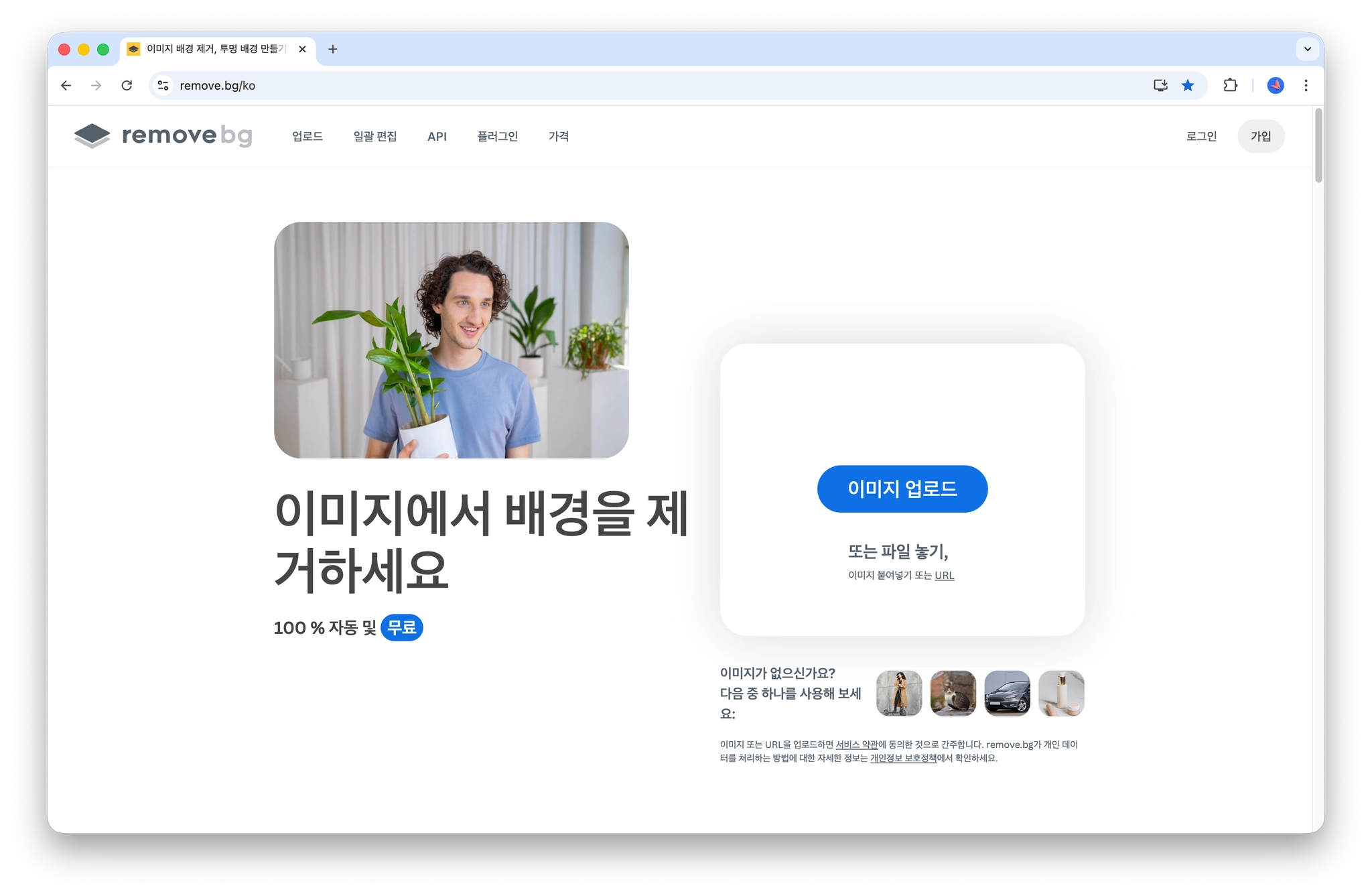
이미지 배경 제거, 투명 배경 만들기 – remove.bg
사진이나 이미지 배경을 한 번 클릭으로 5초만에 무료로 제거할 수 있습니다. 이미지 배경 투명하게 만드는 법. 누끼 따기 프로그램.
www.remove.bg
💡 수행 결과

2. 노드 서버 구축
💡 노드 서버 구축
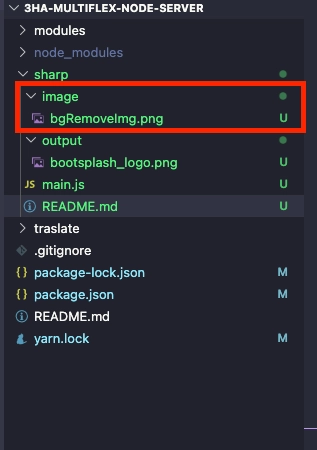
- 아래와 같이 ‘sharp’라는 이름으로 구성하였고, image/*, main.js 파일 형태로 구성이 되어 있습니다.

💡 Node에서 이미지를 처리하는 라이브러리로 ‘sharp’를 이용하여서 구성하였습니다.
# 아래 라이브러리를 설치하였습니다.
npm i sharp fs
3. image/ 경로에 bg를 제거한 이미지를 옮겨두었습니다.
💡image/ 경로에 bg를 제거한 이미지를 옮겨두었습니다.
- 이미지 파일명은 bgRemoveImage로 지정을 하였습니다.
4. main.js
💡 main.js
1. characterBuf 과정에서는 사전에 준비한 이미지를 리사이즈합니다.
2. compositeBuf 과정에서는 캐릭터와 SVG(배경 그라디언트, 스파클, 메인텍스트, 서브텍스트)로 구성이 되어 있고, 이를 함께 합성합니다.
3. sharp 과정에서는 두 개 캐릭터와 SVG를 합성하여서 최종적으로 react-native-bootsplash가 요구한 결과값으로 출력을 합니다.
import sharp from "sharp";
import { mkdirSync } from "fs";

const width = 500;
const height = 500;

mkdirSync("./output", { recursive: true });

const sparkles = `
  ✦import sharp from "sharp";
import { mkdirSync } from "fs";

const width = 500;
const height = 500;

mkdirSync("./output", { recursive: true });

const sparkles = `
  <text x="56"  y="108" font-size="22" text-anchor="middle" opacity="0.5"  fill="#FFF5E6">✦</text>
  <text x="448" y="154" font-size="18" text-anchor="middle" opacity="0.45" fill="#FFF5E6">✦</text>
  <text x="66"  y="352" font-size="14" text-anchor="middle" opacity="0.35" fill="#FFF5E6">✧</text>
  <text x="438" y="322" font-size="20" text-anchor="middle" opacity="0.45" fill="#FFF5E6">✦</text>
  <text x="110" y="52"  font-size="12" text-anchor="middle" opacity="0.4"  fill="#FFF5E6">✧</text>
  <text x="382" y="70"  font-size="16" text-anchor="middle" opacity="0.45" fill="#FFF5E6">✦</text>
  <text x="458" y="412" font-size="12" text-anchor="middle" opacity="0.32" fill="#FFF5E6">✧</text>
  <text x="42"  y="438" font-size="12" text-anchor="middle" opacity="0.32" fill="#FFF5E6">✧</text>
  <text x="198" y="42"  font-size="10" text-anchor="middle" opacity="0.35" fill="#FFF5E6">·</text>
  <text x="308" y="36"  font-size="11" text-anchor="middle" opacity="0.3"  fill="#FFF5E6">·</text>
  <text x="476" y="234" font-size="10" text-anchor="middle" opacity="0.25" fill="#FFF5E6">·</text>
  <text x="24"  y="250" font-size="11" text-anchor="middle" opacity="0.25" fill="#FFF5E6">·</text>
  <text x="458" y="468" font-size="16" text-anchor="middle" opacity="0.55" fill="#FFF5E6">✦</text>
`;


const mainTitle = "사픽: 사자성어 퀴즈";
const subTitle = "사자성어 퀴즈로 배우는 쉽고 재미있는 한자 학습";

const svg = `
<svg width="${width}" height="${height}" xmlns="http://www.w3.org/2000/svg">
  <defs>
    <radialGradient id="bgGrad" cx="38%" cy="32%" r="72%">
      <stop offset="0%"   stop-color="#FFB366"/>
      <stop offset="55%"  stop-color="#FF8C42"/>
      <stop offset="100%" stop-color="#D95F1E"/>
    </radialGradient>
    <radialGradient id="glowBottom" cx="50%" cy="100%" r="55%">
      <stop offset="0%"   stop-color="#FFD4A3" stop-opacity="0.55"/>
      <stop offset="100%" stop-color="#FF8C42" stop-opacity="0"/>
    </radialGradient>
    <linearGradient id="textGrad" x1="0%" y1="0%" x2="100%" y2="0%">
      <stop offset="0%"   stop-color="#FFFBF2"/>
      <stop offset="100%" stop-color="#FFE4C4"/>
    </linearGradient>
    <linearGradient id="lineGrad" x1="0%" y1="0%" x2="100%" y2="0%">
      <stop offset="0%"   stop-color="#FFF5E6" stop-opacity="0"/>
      <stop offset="50%"  stop-color="#FFF5E6" stop-opacity="0.75"/>
      <stop offset="100%" stop-color="#FFF5E6" stop-opacity="0"/>
    </linearGradient>
  </defs>

  <!-- 하단 글로우 타원 -->
  <ellipse cx="250" cy="455" rx="210" ry="50" fill="url(#glowBottom)" opacity="0.65"/>

  <!-- 스파클 -->
  ${sparkles}

  <!-- 구분선 -->
  <line x1="125" y1="410" x2="375" y2="410"
    stroke="url(#lineGrad)" stroke-width="1.2" stroke-linecap="round"/>

  <!-- 메인 텍스트 -->
  <text x="250" y="444" text-anchor="middle"
    font-family="'Apple SD Gothic Neo', 'Noto Sans KR', Arial, sans-serif"
    font-size="40" font-weight="bold"
    fill="url(#textGrad)" letter-spacing="1">${mainTitle}</text>

  <!-- 서브 텍스트 -->
  <text x="250" y="478" text-anchor="middle"
    font-family="'Apple SD Gothic Neo', 'Noto Sans KR', Arial, sans-serif"
    font-size="14"
    fill="#FFE4C4" letter-spacing="2.5" opacity="0.95">${subTitle}</text>
</svg>`;

const characterBuf = await sharp("./image/bgRemoveImg.png")
  .resize(420, 420)
  .toBuffer();

const compositeBuf = await sharp({
  create: {
    width,
    height,
    channels: 4,
    background: { r: 0, g: 0, b: 0, alpha: 0 },
  },
})
  .composite([
    { input: characterBuf, top: 0, left: 40 },
    { input: Buffer.from(svg), top: 0, left: 0 },
  ])
  .png()
  .toBuffer();

await sharp(compositeBuf)
  .resize(500, 500, {
    fit: "contain",
    background: { r: 0, g: 0, b: 0, alpha: 0 },
  })
  .png()
  .toFile("./output/bootsplash_logo.png");

console.log("완료! ./output/bootsplash_logo.png 생성됨");

  ✦
  ✧
  ✦
  ✧
  ✦
  ✧
  ✧
  ·
  ·
  ·
  ·
  ✦
`;

const mainTitle = "사픽: 사자성어 퀴즈";
const subTitle = "사자성어 퀴즈로 배우는 쉽고 재미있는 한자 학습";

const svg = `


  ${sparkles}


  ${mainTitle}


  ${subTitle}
`;

const characterBuf = await sharp("./image/bgRemoveImg.png")
  .resize(420, 420)
  .toBuffer();

const compositeBuf = await sharp({
  create: {
    width,
    height,
    channels: 4,
    background: { r: 0, g: 0, b: 0, alpha: 0 },
  },
})
  .composite([
    { input: characterBuf, top: 0, left: 40 },
    { input: Buffer.from(svg), top: 0, left: 0 },
  ])
  .png()
  .toBuffer();

await sharp(compositeBuf)
  .resize(500, 500, {
    fit: "contain",
    background: { r: 0, g: 0, b: 0, alpha: 0 },
  })
  .png()
  .toFile("./output/bootsplash_logo.png");

console.log("완료! ./output/bootsplash_logo.png 생성됨");
5. node를 실행하여 결과값을 확인합니다.
💡 node를 실행하여 결과값을 확인합니다.
- 합성된 이미지를 결과값으로 반환받습니다.
node main.js
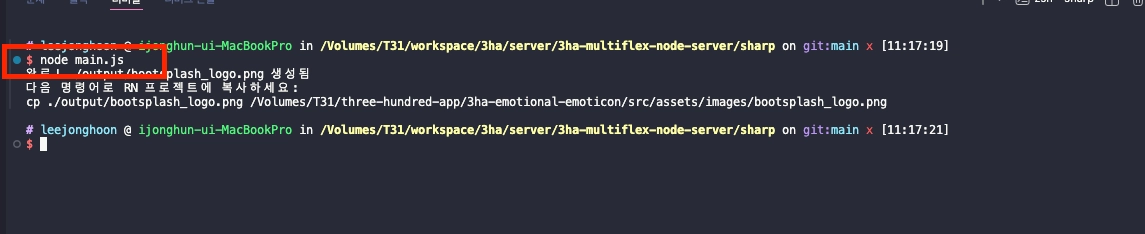
6. 결과적으로 output/bootsplash_logo.png 파일이 출력이 됩니다.
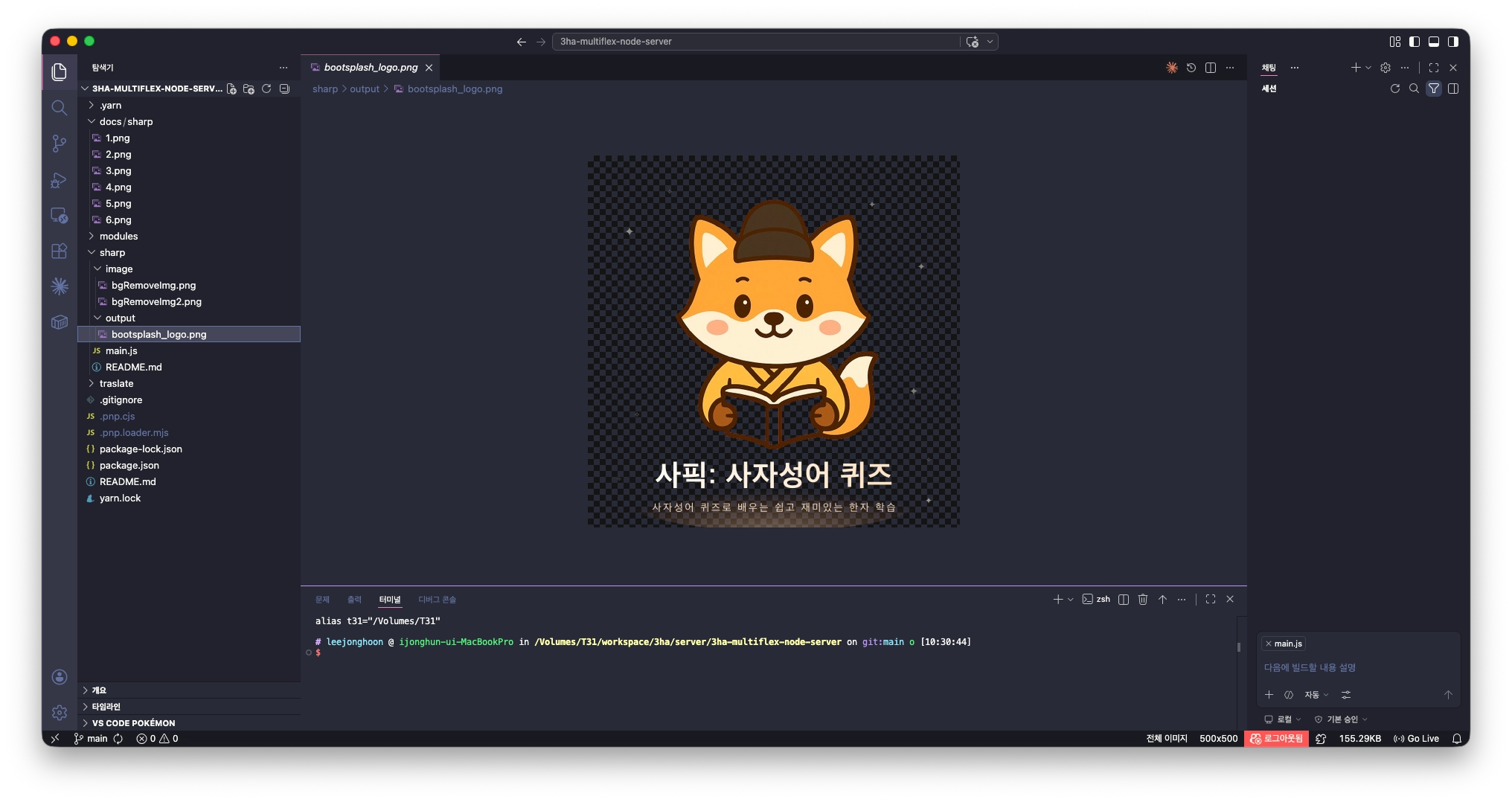
3) 스플래시 이미지 생성 과정-1: React Native
1. RN 프로젝트 내에 해당 이미지를 복사 & 붙여 넣기 한다.
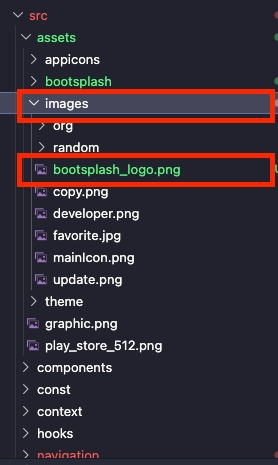
2. RN 프로젝트에서 아래의 명령어를 입력합니다.
💡 RN 프로젝트에서 아래의 명령어를 입력합니다.
- react-native-bootsplash의 자산 자동 생성 CLI 명령어입니다.
- 여기서 주요한 내용은 background입니다. 사전에 이미지는 bg를 제거한 상태입니다.
- 그렇기에 이에 알맞은 hex 색상에 맞게 적용을 합니다.
# Android
yarn react-native-bootsplash generate ./src/assets/images/bootsplash_logo.png \
  --platforms=android \
  --background="#ff8c42" \
  --logo-width=134 \
  --flavor=main

# iOS
yarn react-native-bootsplash generate ./src/assets/images/bootsplash_logo.png \
  --platforms=ios \
  --background="#ff8c42" \
  --logo-width=400 \
  --flavor=main
[ 더 알아보기]
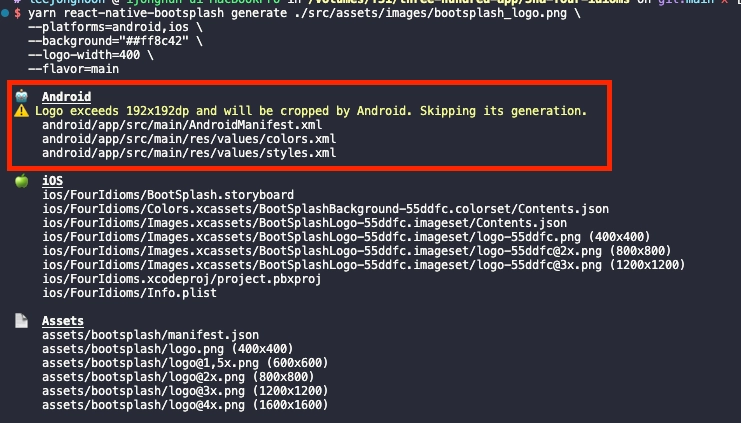
💡 안드로이드, iOS 플랫폼에 분리하는 이유는 뭘까?
- 아래와 같이 'Logo exceeds 192x192dp and will be cropped by Android. Skipping its generation.'가 발생합니다.
- Android는 최대 192x192dp 제한이 있어서 Android 생성을 건너뛰어지게 됩니다.
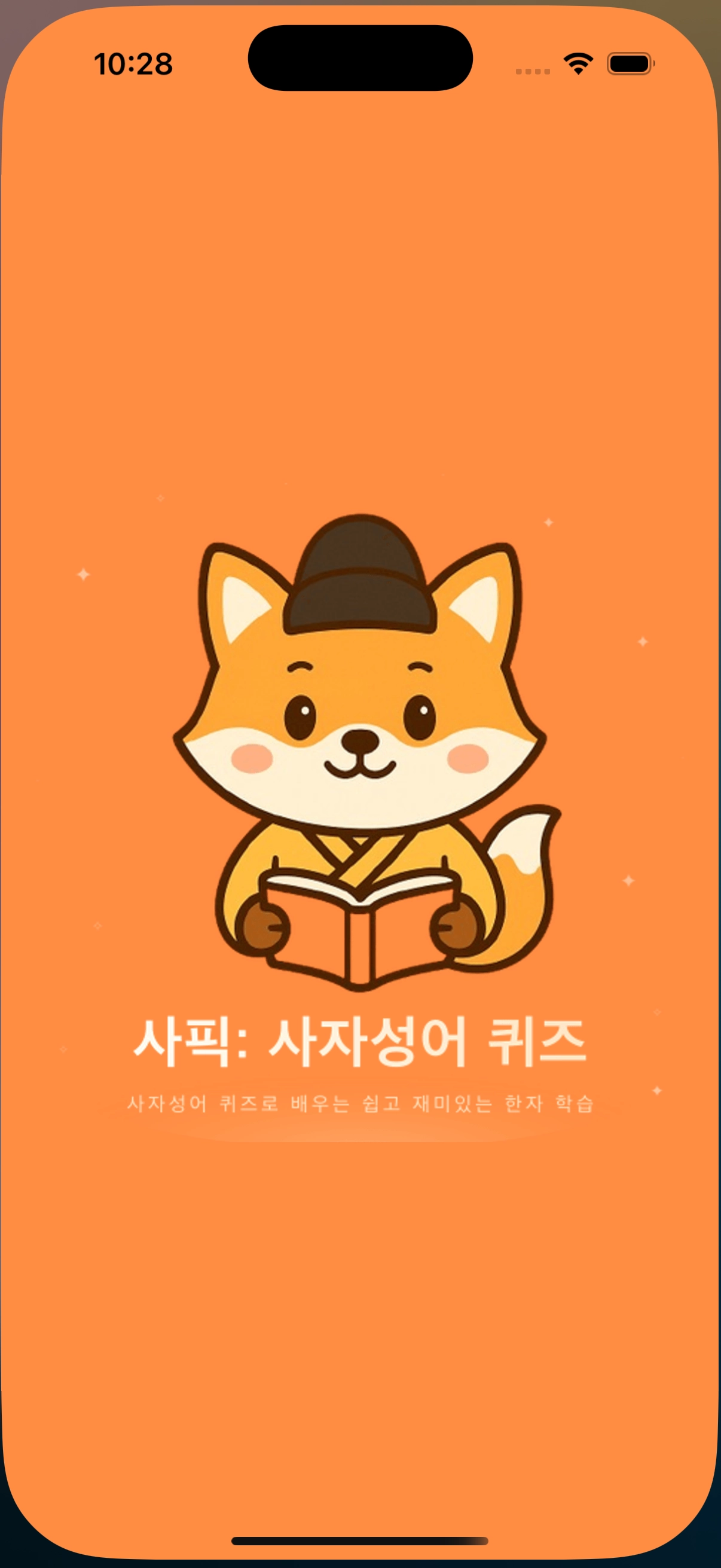
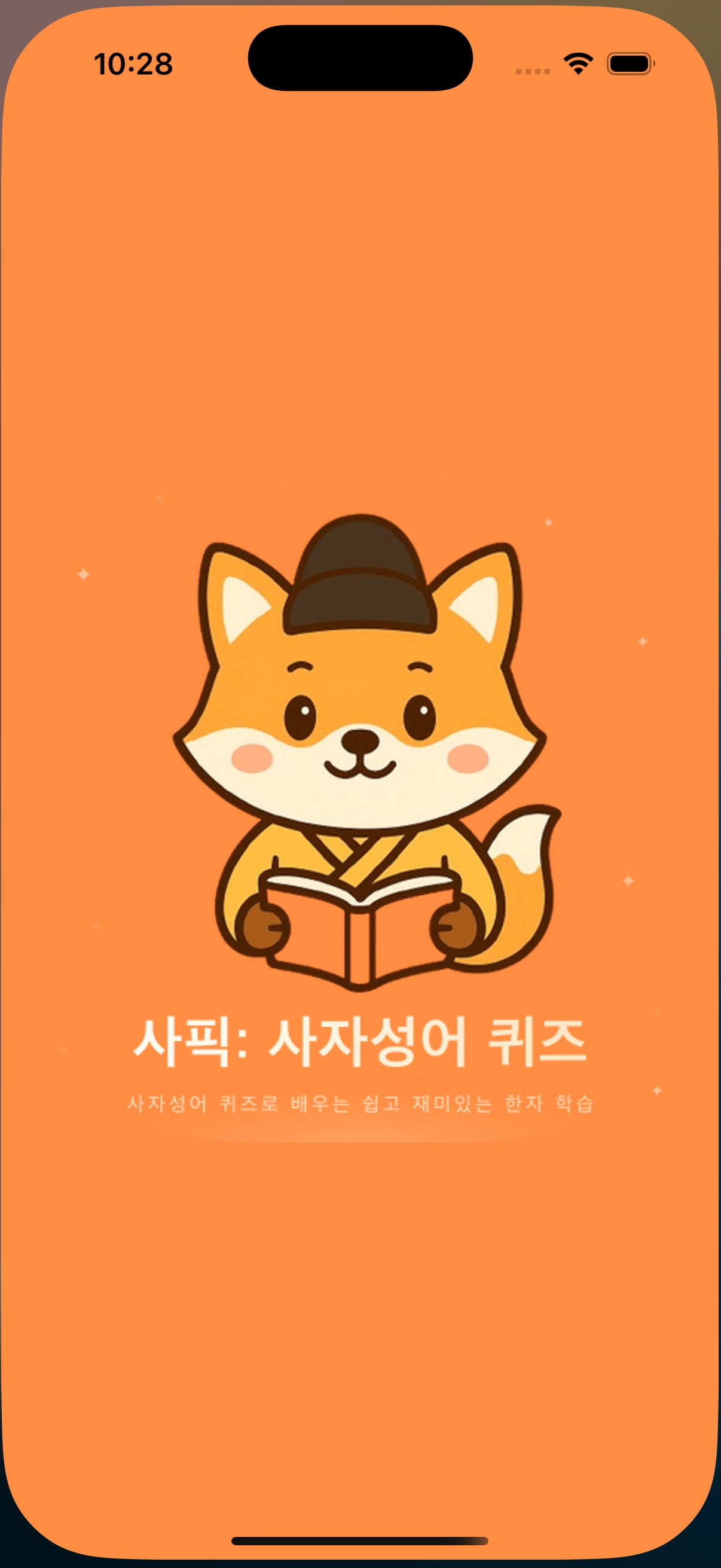
3. 결론적으로 아래와 같이 스플래시 결과물이 적용이 됩니다.
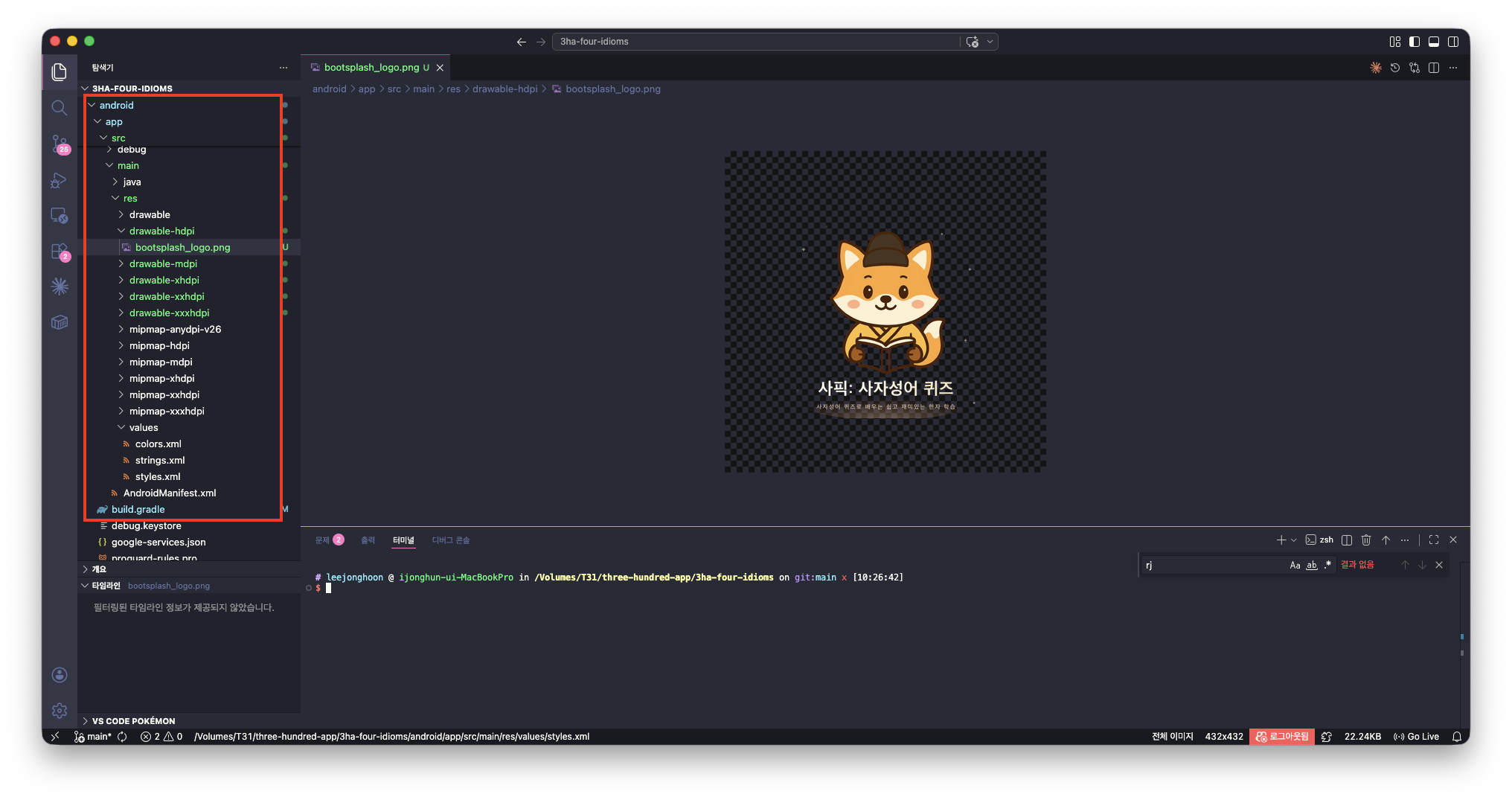
4. 앱 자체를 재빌드 해야 하며 아래와 같은 결과를 얻을 수 있습니다.
사픽: 사자성어 퀴즈 - Google Play 앱
사자성어를 카드로 배우고, 퀴즈와 오답 복습으로 완벽히 암기하는 학습 앱
play.google.com
사픽: 사자성어 퀴즈 앱 - App Store
App Store에서 EcodeLab의 사픽: 사자성어 퀴즈 앱을 다운로드하십시오. 스크린샷, 평가 및 리뷰, 사용자 팁 및 사픽: 사자성어 퀴즈 앱과 비슷한 다른 앱을 볼 수 있습니다.
apps.apple.com
오늘도 감사합니다. 😀
'React & React Native > 라이브러리 활용' 카테고리의 다른 글
| [JS] Quill Editor v2 이해하고 활용하기-1: 기본 활용 (0) | 2026.02.05 |
|---|---|
| [RN] React Native 환경에서 Unity LevelPlay 광고 넣기 : Banner, Interstitial (0) | 2025.11.04 |
| [RN] VisionCamera frameProcessor Buffer : waitForFreeSlotThenRelock: timeo (0) | 2025.09.25 |
| [RN] ONNX(Open Neural Network Exchange) 이해하기 -5 : 메모리 누수 해결 (0) | 2025.09.25 |
| [RN] React Native 환경에서 react-native-rename을 활용하여 프로젝트 명, 패키지 일괄 변경하기 (1) | 2025.06.30 |